Getting Started
Overview
The SELF Mobile App is a self-custodial identity wallet (referred to as your “SELF” in our ecosystem) that empowers you to securely manage your digital identities and data. Designed with privacy, autonomy, and usability at its core, SELF gives you full control over how and with whom you share your information.
More than just a wallet, the SELF App allows you to collect, organize, and share molecules — digital versions of real-world credentials like diplomas, licenses, and certificates — while seamlessly interacting with other identities in the network. With cutting-edge security features and a user-friendly design, SELF ensures your digital identity stays in your hands.
Getting Started
This section guides you through the process after first installing and opening the app.
SELF Introduction
When you first download and launch the application, you'll be presented with an optional slideshow that goes through some of the key concepts and features of SELF. You will also be prompted to review and agree to SELF’s terms and conditions. This will be a one time activity, unless documents are updated and require an additional review.
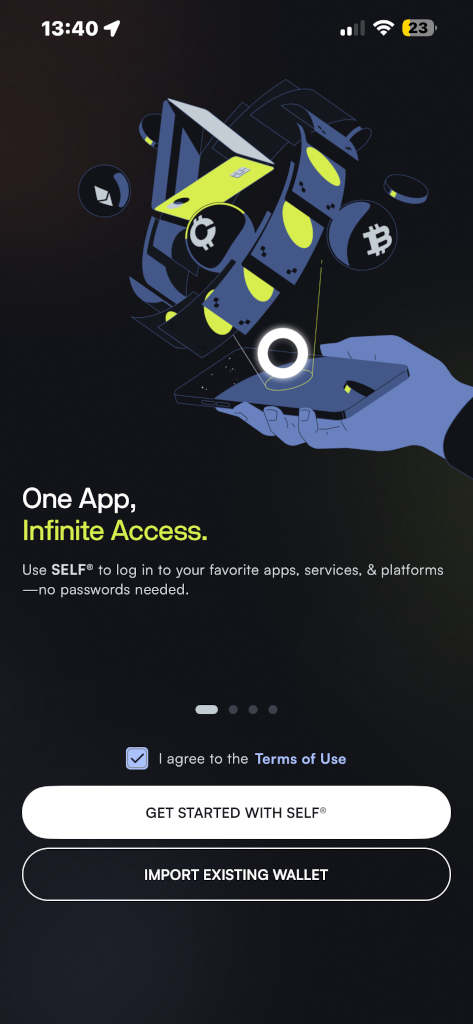
Once SELF’s terms and conditions have been accepted, you will be able to either import and existing wallet, or get started with creating a new wallet and identity.
Create Your First Identity
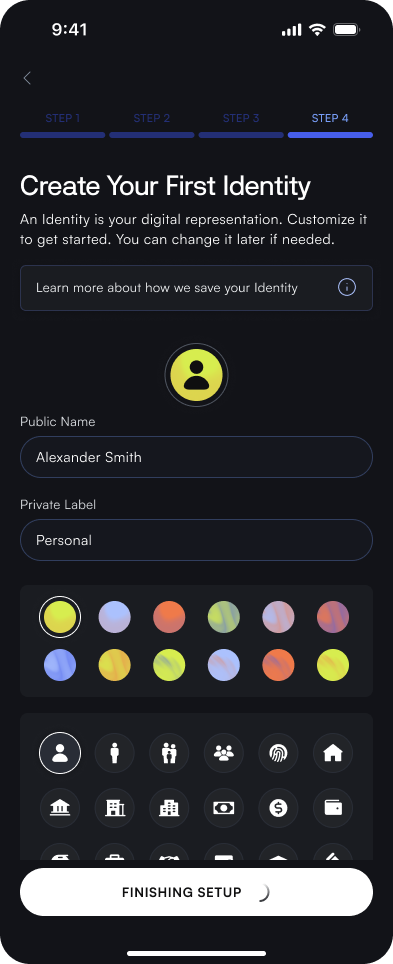
After completing the initial setup, you are now ready to create your first identity! Creating your digital identity is a foundational step in using the wallet and the SELF application. You will be prompted to optionally provide your identity a name, color and icon. You will be able to manage multiple identities in your wallet, so it is helpful to differentiate them.
Secure Your Wallet
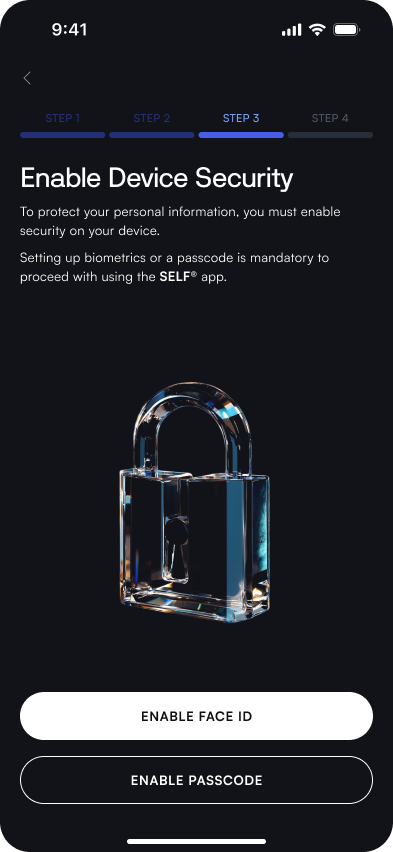
You must select a method of securing your wallet. Methods will differ by device, but may include a passcode or other biometric options. This can be edited in the settings page at any time.
Once submitted, several actions will happen in the background. The application will generate a unique Decentralized Identifier (DID) for you. It willlbe comprised of something like did:example:123456789abcdefghi. A secure profile will be created associated with this DID, including cryptographic keys.
Notifications
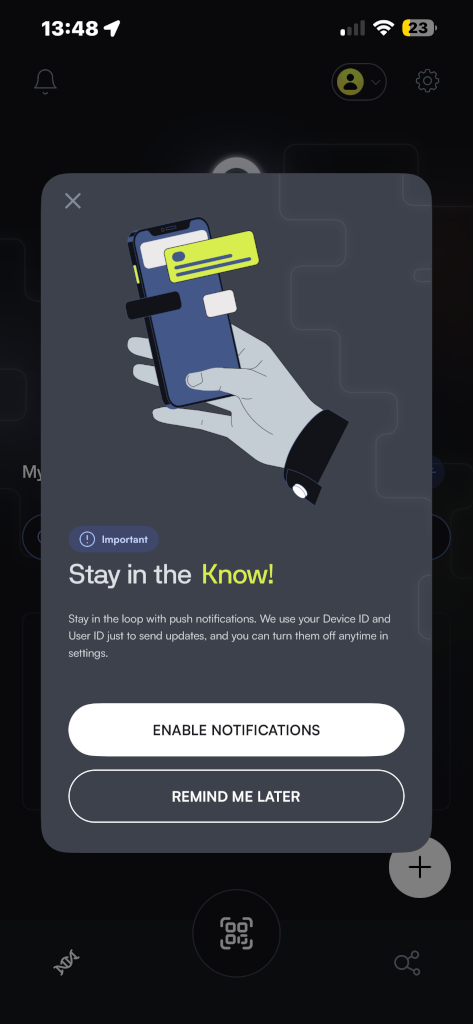
After your identity and wallet have been generated, you will be prompted to enable notifications. Notifications allow you to stay in the loop and make sure you never miss an attestation or update. Notifications utilizes your User ID and Device ID to correctly route messages and may be disabled at any time.